Recognized by top app review and tech websites worldwide!




Pick one thing you want to improve this week.
You don’t need to set everything on day one. Choose a goal, get quick wins, then expand.

Healthy Routines
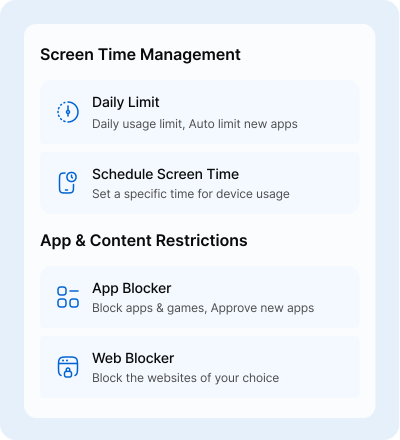
schedules, daily limits, app blocker, Attention Mode
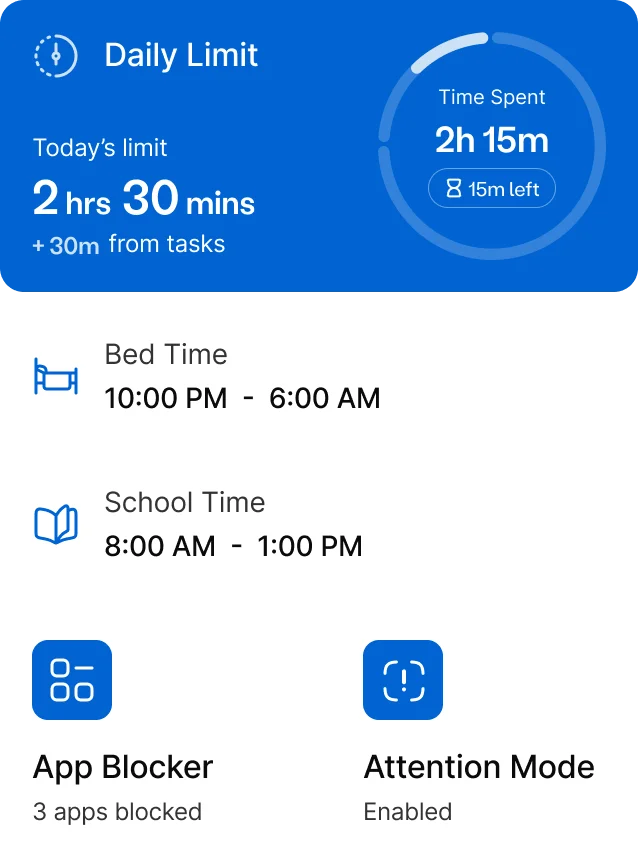
 Best for: bedtime, homework, reducing arguments
Online Safety
internet filters, SafeSearch, web blocker
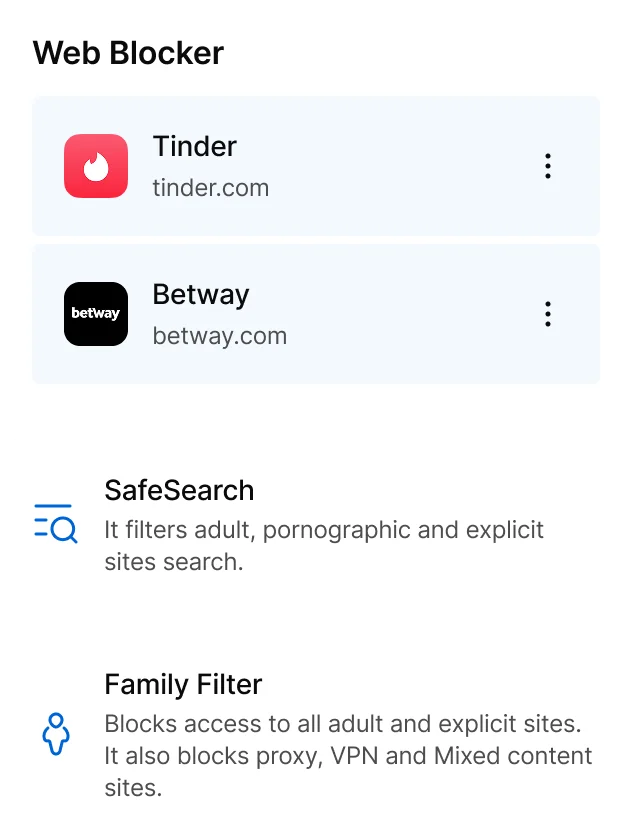 Best for: safer browsing and cleaner search results
Family Safety
kid tracker, geofences, SOS, no-show, low-battery alerts
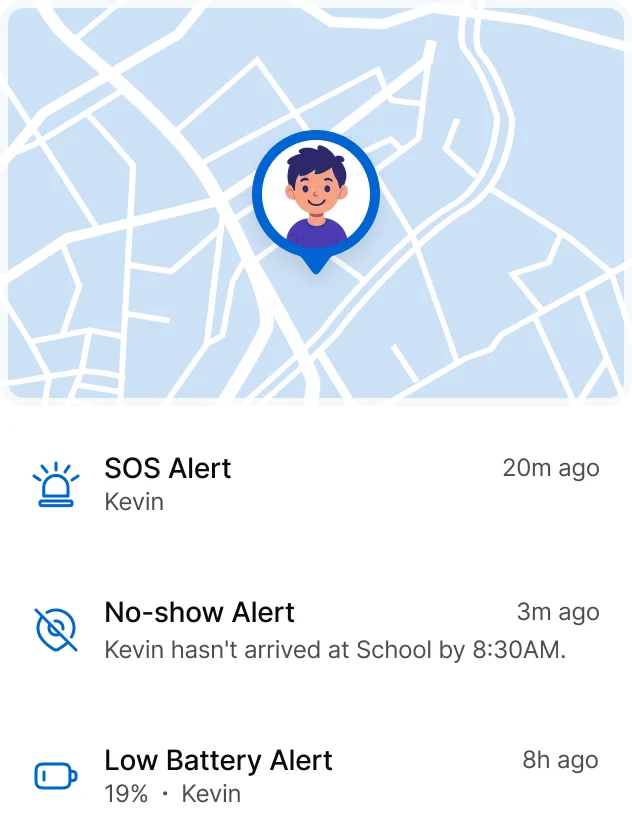 Best for: pickups, commutes, and peace of mind
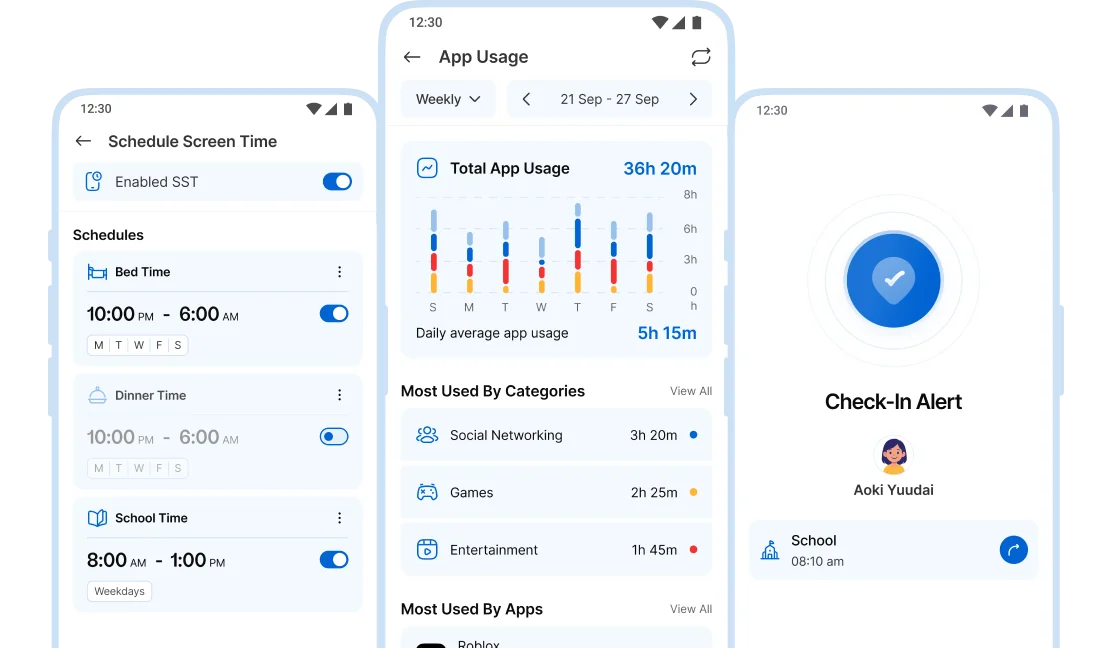
Two apps, one shared family space.
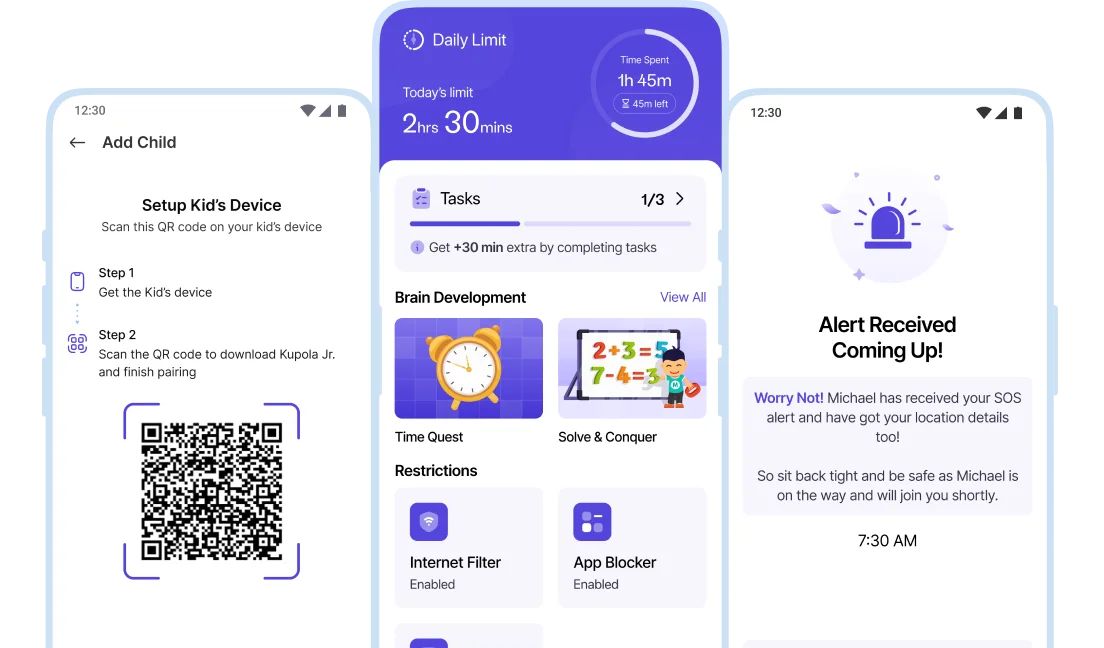
Parents manage settings in Kupola Parent. Kids use the Kupola Jr. app on their device.
Kupola
(for guardians)
Set routines, safety, and online protection. View insights and alerts.
Kupola Jr.
(for the child device)
Applies the selected protections and keeps the device connected.
Set up in Minutes.
Three steps on two phones, and your family is connected today.
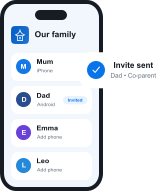 ~1 min
Get Kupola on your phone
Create your family and invite a co-parent or guardian.
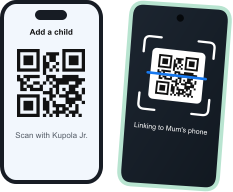 ~2 min
Link your child's phone
Install Kupola Jr. and scan the QR code. Kupola shows what's supported on that phone.
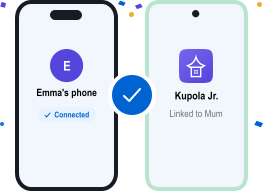 Done
DoneYou're all set
Your family is connected. Turn on the features you need, whenever you're ready.


Everything is visible at a glance.
You shouldn’t need to “remember settings.” Kupola shows what’s active and what changed.
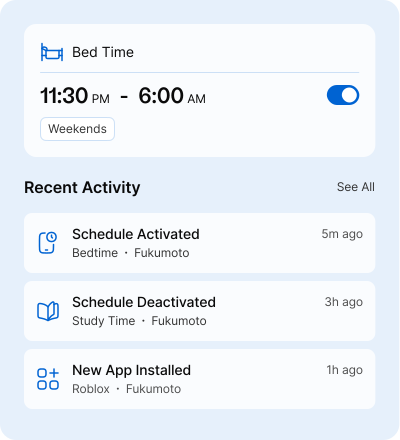
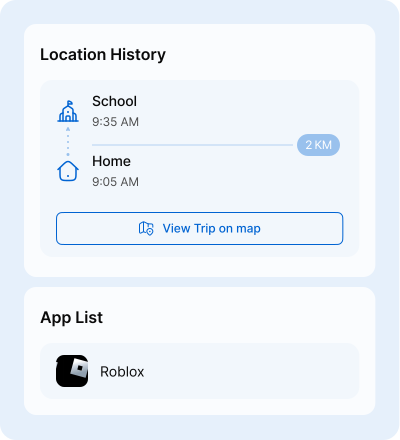
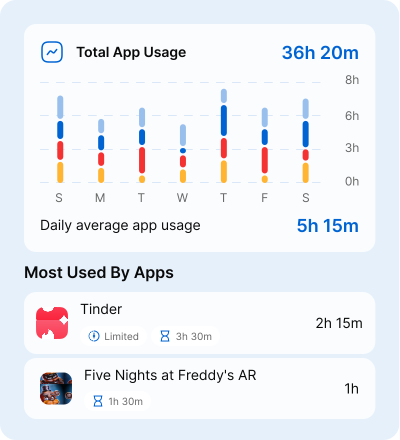


Today view:
Bedtime, homework, a new app, or a specific day start with one concern.


Per child
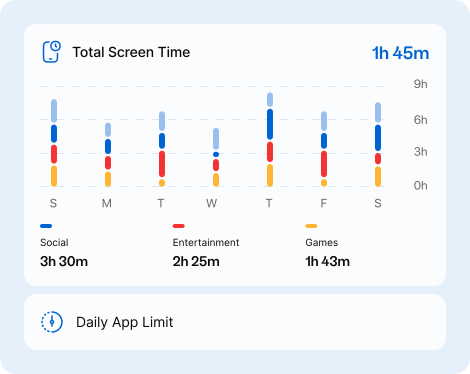
Usage for patterns, location history for context, app list for new installs.


One-tap changes
Update a schedule, limit, or block small changes work best.


Weekly summary
Use insights to explain fairness and expectations, not to “catch” mistakes.
Boundaries that feel predictable.
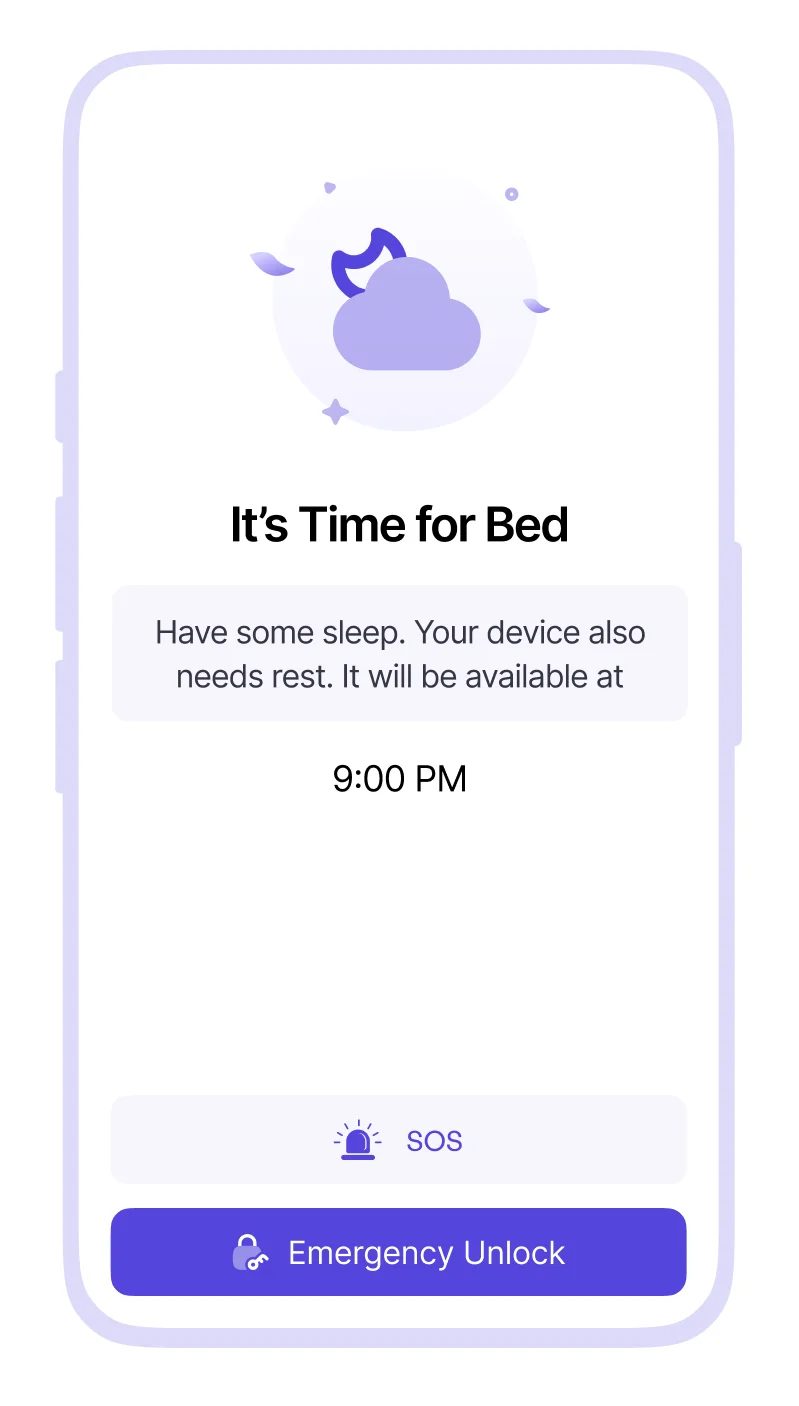
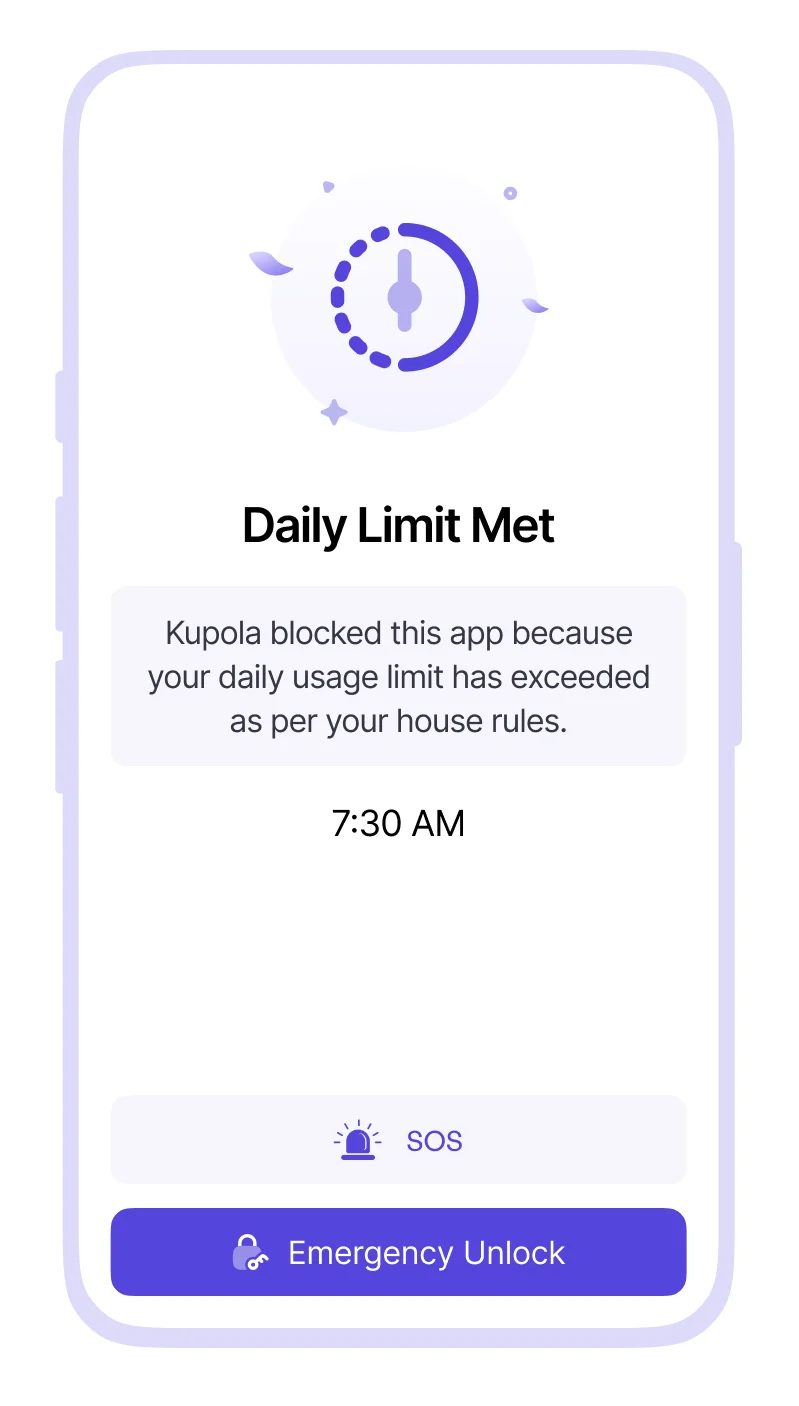
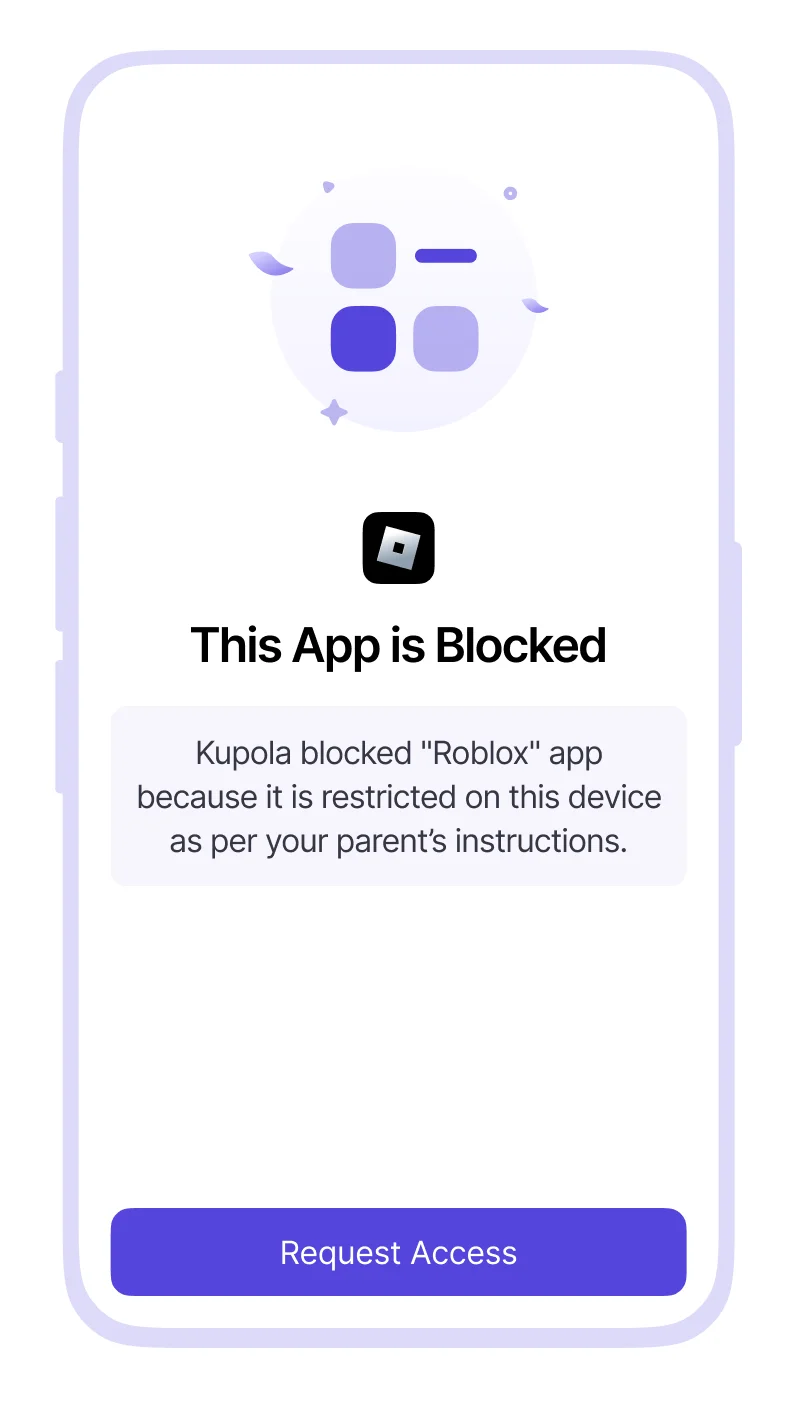
Kupola works best when kids know what to expect. Instead of random restrictions, routines are applied consistently, so daily life feels fair.
- 1
Clear routines
Homework, bedtime, and downtime rules happen at the same times each day.
- 2
Fair daily limits
Time runs out the same way every day, not based on mood or arguments.
- 3
App boundaries
Distracting apps are limited where they cause problems .
- 4
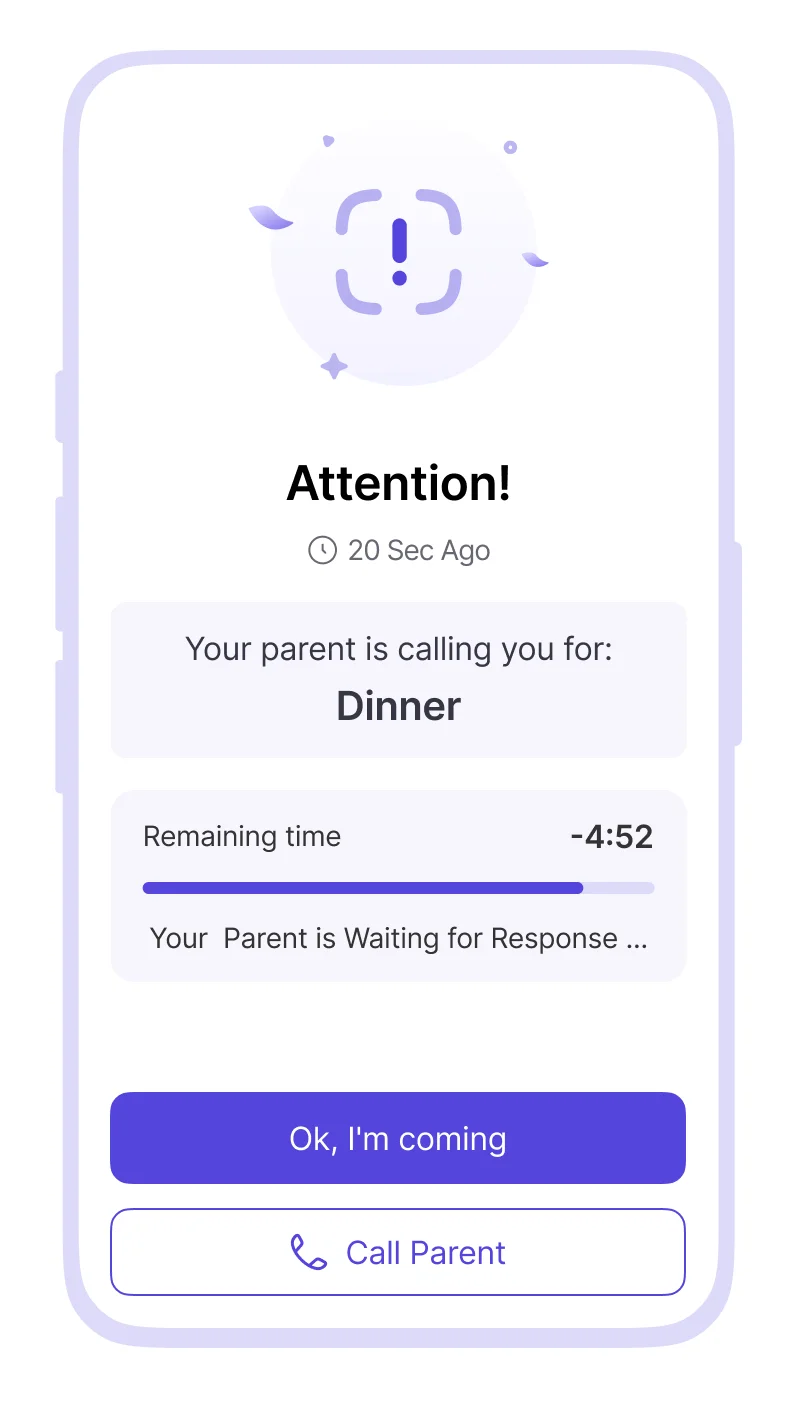
Attention Mode
A short “phone down” moment for dinner, guests, or transitions then resume with one tap.
- 5
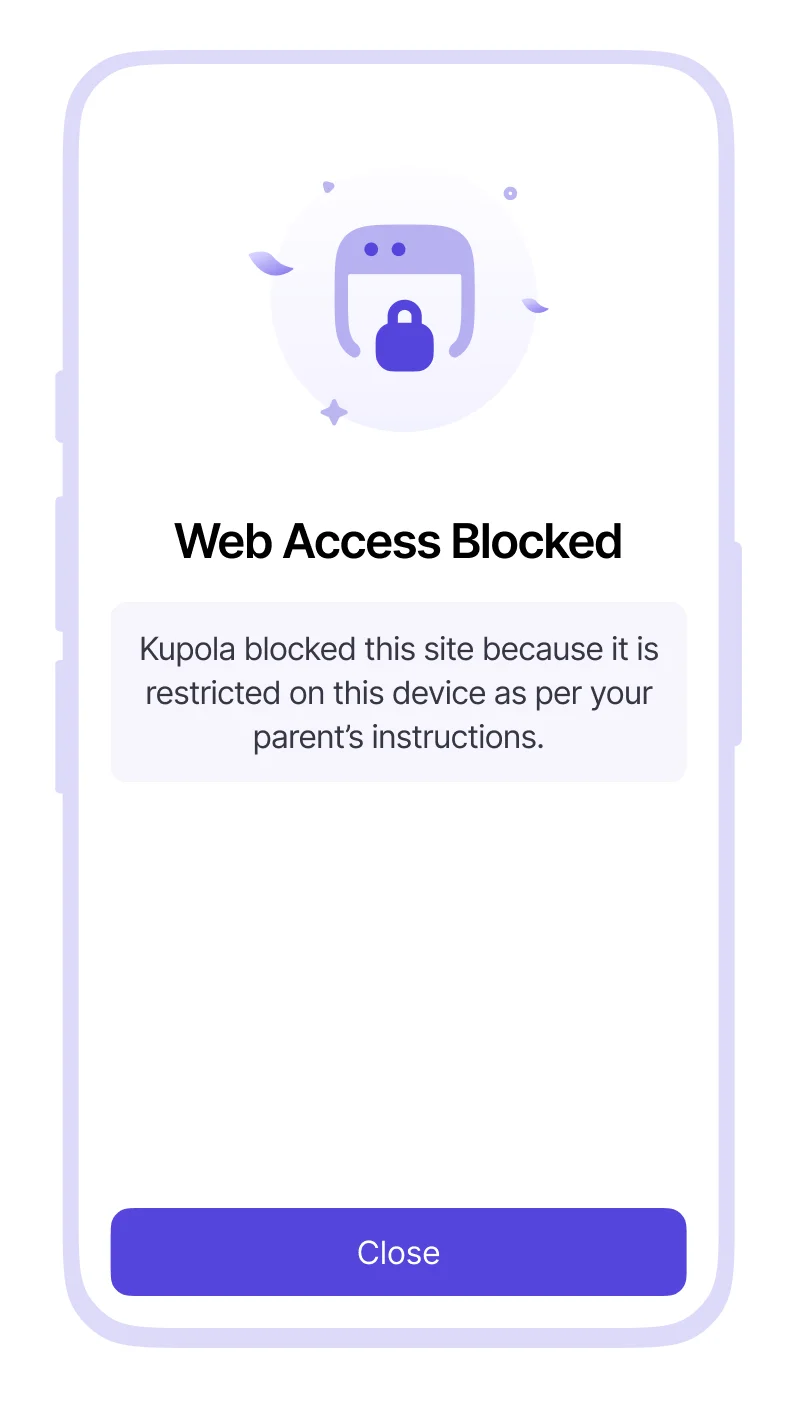
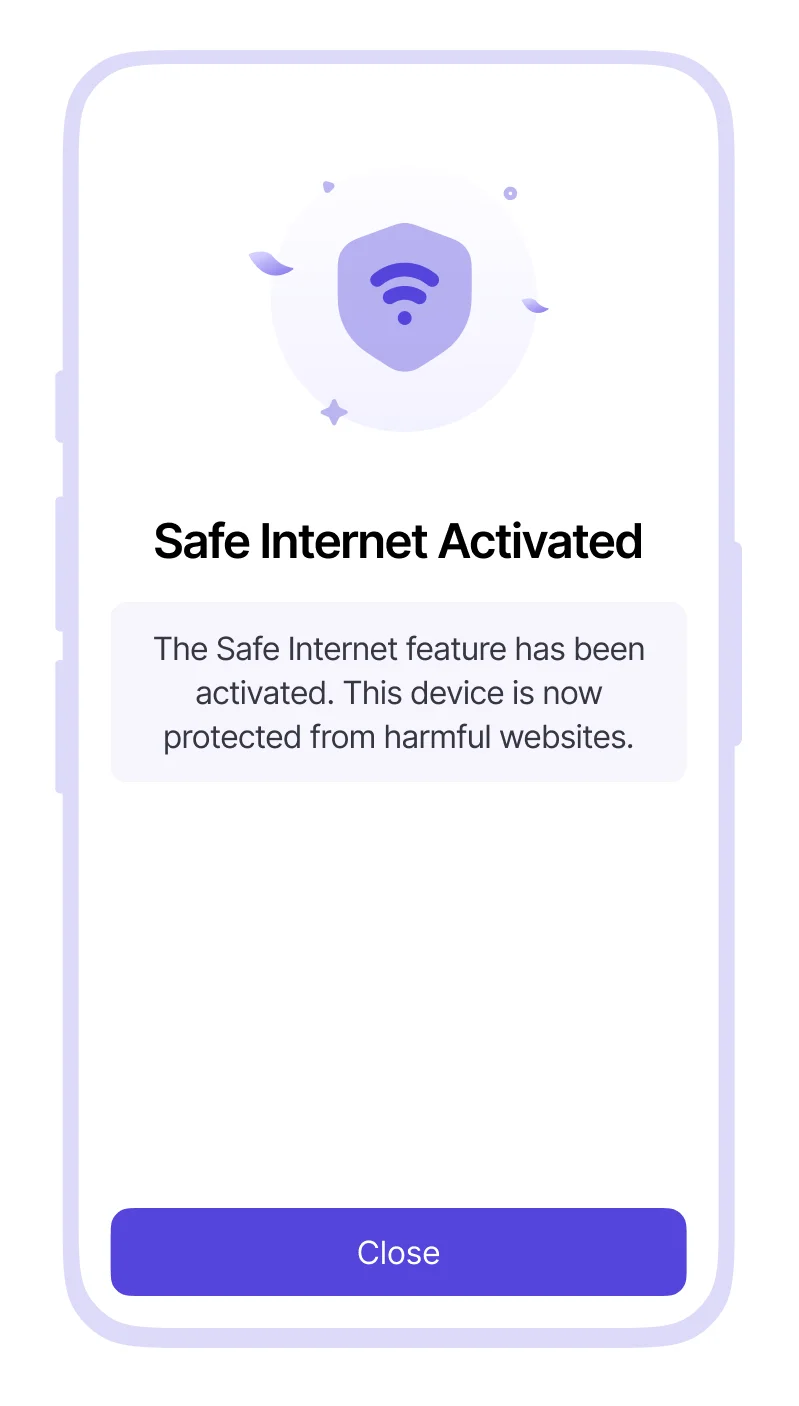
Safer browsing
Cleaner search and fewer harmful sites, without blocking learning.
- 6
Less friction, more trust
Predictable rules reduce conflict and make conversations easier.
Your first week: small wins that stick.
Start with one goal, get quick results, then refine. Kupola works best one calm change at a time.
Day 1
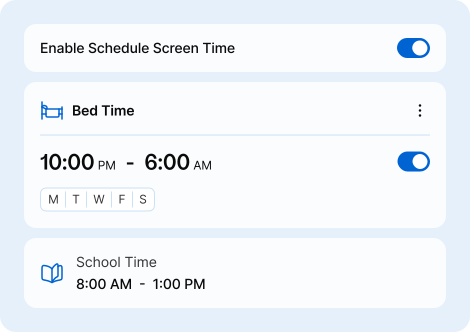
Set one routine
Pick bedtime or homework and turn on a simple schedule so expectations are clear.
Day 2
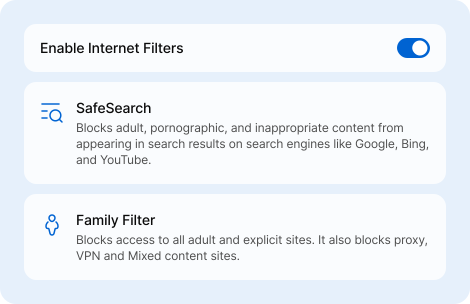
Make browsing safer
Enable SafeSearch and a basic filter level. Add one blocked site if needed.
Day 3
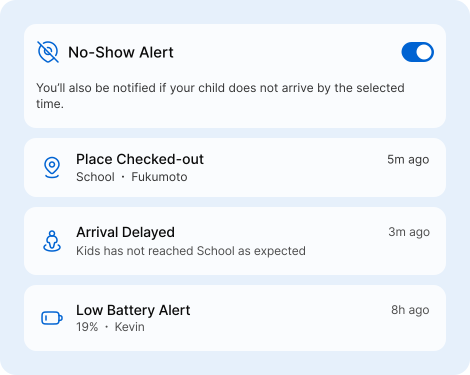
Add peace-of-mind alerts
Set Home + School places and choose one alert you actually want (arrive/leave, no-show, or low battery).

Day 7
Review and adjust
Check patterns, then change one setting small tweaks work better than big resets.
Works on every phone in your family.
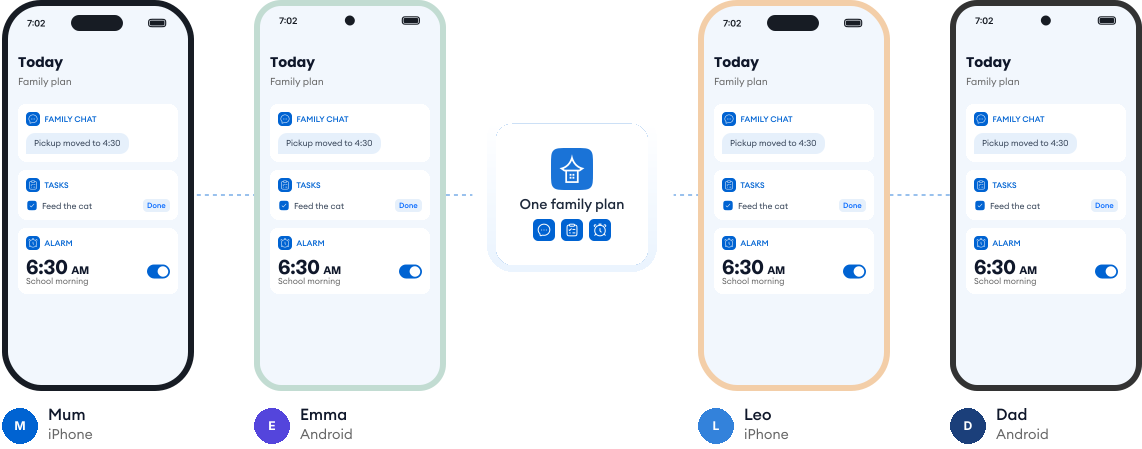
Most families use a mix of phones. Kupola works across iPhone and Android, so everyone stays on the same page, and you always see what's available on each child's phone.
Guides that make setup feel easy.
Step-by-step guides help you set up routines, safety, and key features with confidence, no guessing, no overwhelm.
Privacy-first by design.
We prioritize privacy with GDPR and COPPA compliance, strong security practices, and clear controls that keep families in charge.

Compliance you can trust
Built with GDPR and COPPA requirements in mind to protect families and children’s data.

Encryption for sensitive data
Data is protected with encryption to reduce the risk of unauthorized access.

Access stays in your family
Child information is only visible to approved parents/guardians in your Kupola family.

Control anytime
Adjust what’s shared, change settings, and manage permissions whenever you need.

Data minimization
We collect only what’s necessary to deliver family safety, routines, and insights.

Clear retention & deletion
Manage history and request deletion when you no longer need the service.
